Running in Internet Information Server (IIS)
Both applications can also be hosted on a web server (e.g., IIS on Windows systems).
First, an Application Pool must be created for each application.
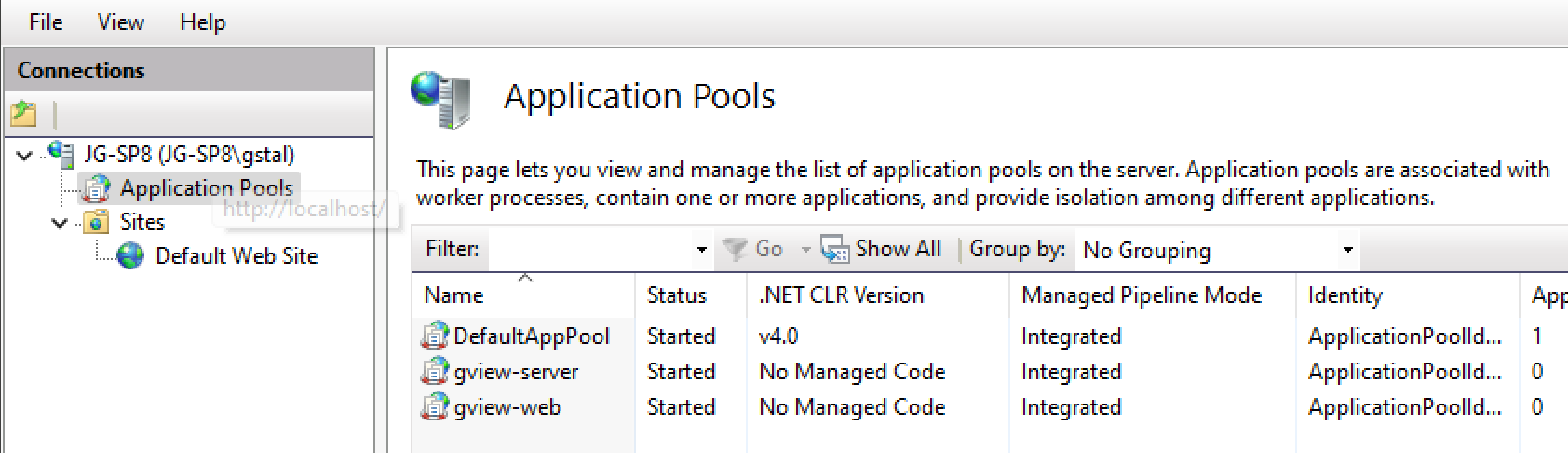
For .NET CLR Version, select No Managed Code and for Managed Pipeline Mode choose Integrated.
In the next step, create a new application on the desired website
(here Default Web Site) (Right-click: Add Application...):
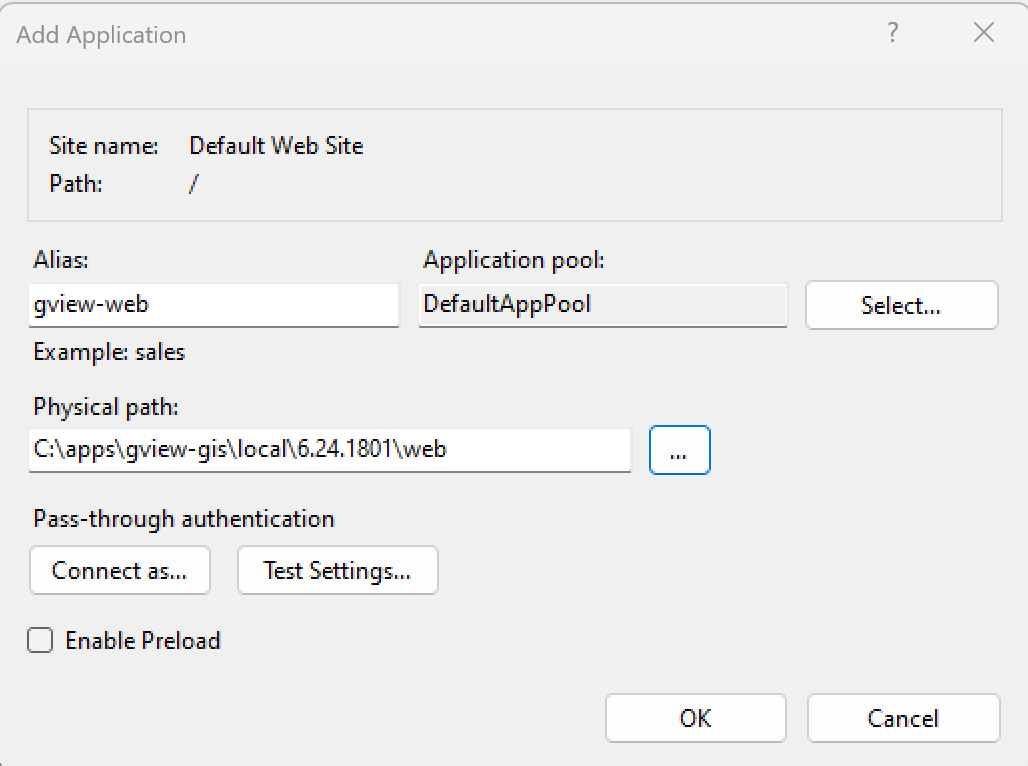
Here, a name, the Application Pool, and the directory where the application was installed must be specified.
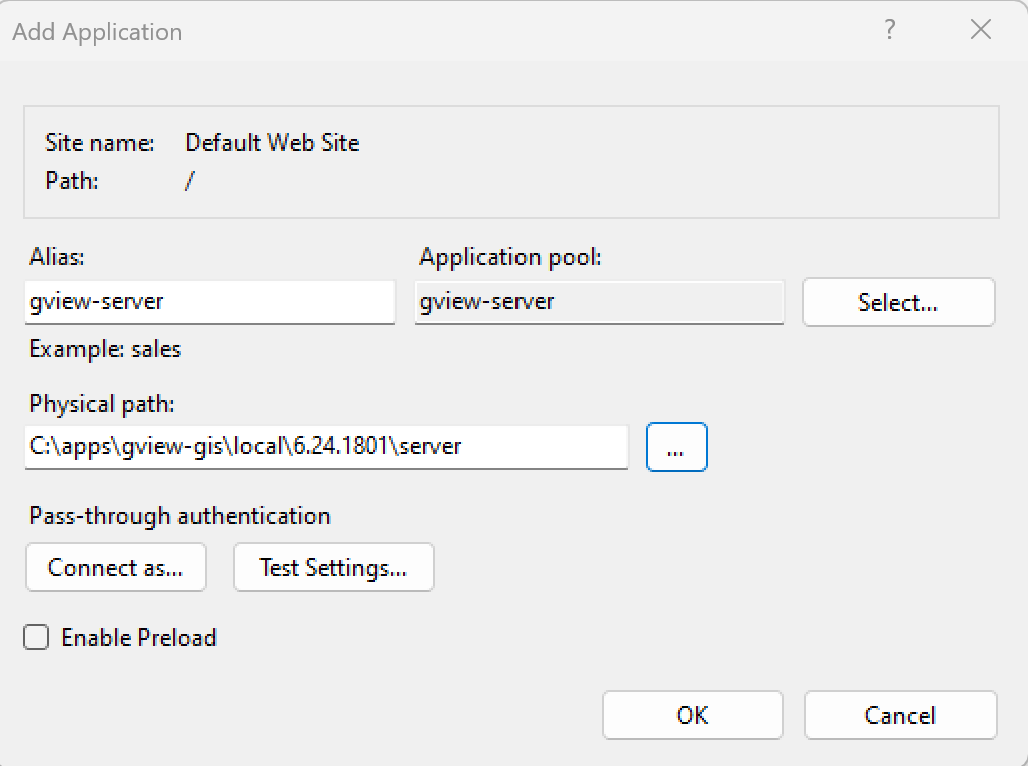
The gView.Server application can be created in the same manner:
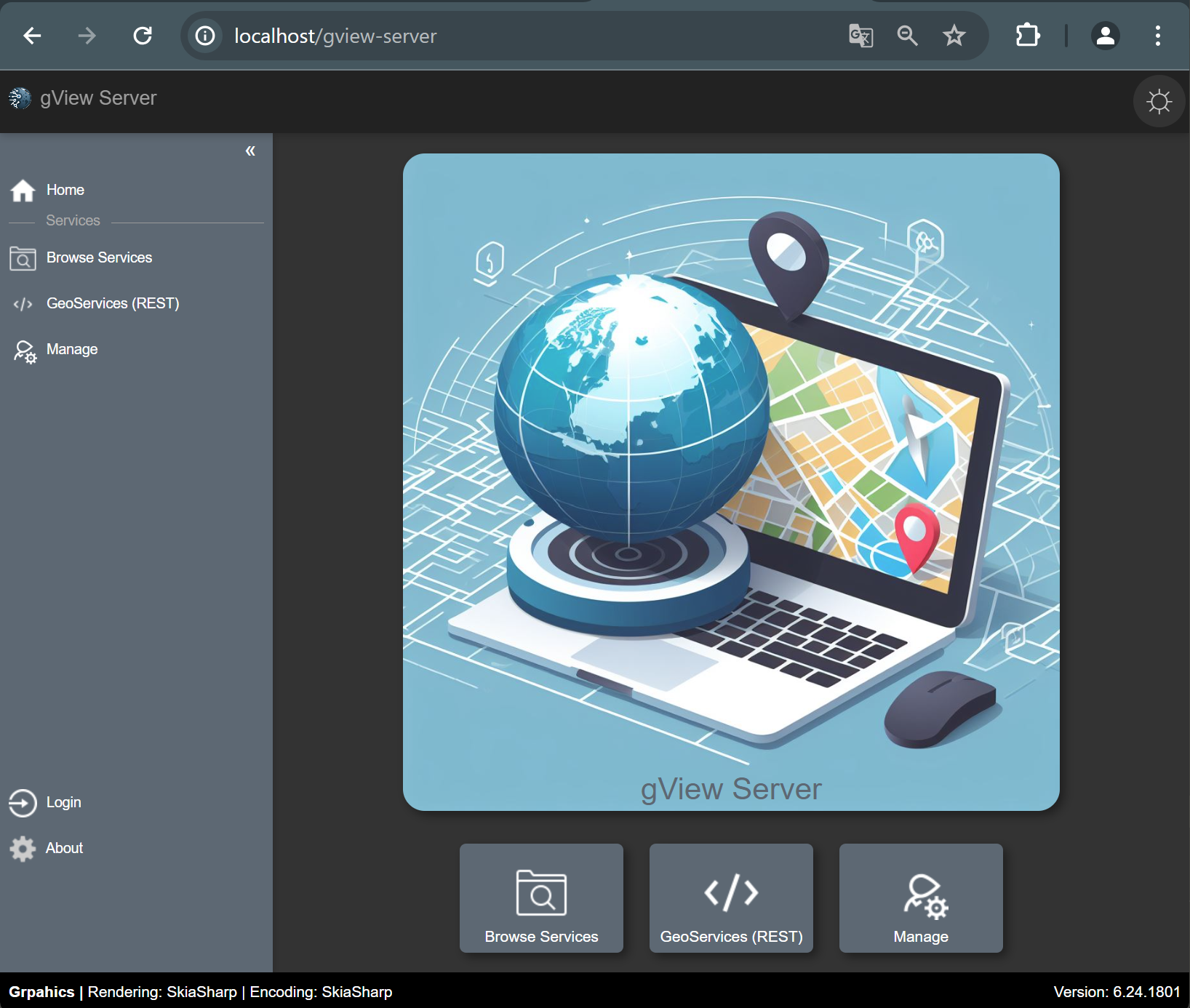
The applications can be accessed at http(s)://{host}/gview-web or http(s)://{host}/gview-server:
Note
If IIS applications do not start, it may be due to the .NET Core Hosting Bundle not being installed.
If it is missing, dotnet-hosting-8.0.x-win.exe must be downloaded and installed from the dotnet download page.
Note
If the gView Server ApplicationPool is not running under a system account such as LocalSystem,
you must set the Load User Profile option to True for this ApplicationPool under
Advanced Settings… in the Process Model section. Otherwise, the application may encounter
issues accessing the crypto01.pfx certificate. In that case, the application will terminate
with an error message upon startup.