Log in as Administrator
After the initial startup, the console output should be checked:
[09:29:58 Information]
Starting host...

Using config file: _config/default.identityserver.net.json (not exist)
################# Setup ##################
ISigningCredentialCertificateStorage: IdentityServerNET.Services.SigningCredential.SigningCredentialCertificateInMemoryStorage
IUserDbContext: IdentityServerNET.Services.DbContext.InMemoryUserDb
IRoleDbContext: IdentityServerNET.Services.DbContext.InMemoryRoleDb
IClientDbContext: IdentityServerNET.Services.DbContext.InMemoryClientDb
IResourceDbContext: IdentityServerNET.Services.DbContext.InMemoryResourceDb
User admin@is.net created
Password: Ay!ql5@r=xc%xOvq
#########################################
[09:29:59 Information] IdentityServer4.Startup
This displays the configuration file in use. In the example shown, IdentityServerNET starts without an existing
configuration file (... not exist). This is generally possible, and in such cases, default configuration values are used.
Note
Starting without a configuration file is recommended only for testing. Here, all certificates, users, roles, clients, etc., are stored only in memory (InMemory databases). If the application restarts, all settings made will be lost.
In the Setup block, the database instances in use are shown. The following databases are listed here:
ISigningCredentialCertificateStorage: Certificates are stored here. These certificates enable user login, and with their public keys, the validity of a (JWT) token can be verified. The necessary keys for this are also provided by IdentityServer at this URL: https://my-identity-server-url/.well-known/openid-configuration/jwks
IUserDbContext: Stores users.
IRoleDbContext: Stores user roles.
IClientDbContext: Stores clients, which are (web) applications where users can log in via the IdentityServer.
IResourceDbContext: Stores resources. These represent the scopes that applications can pass during login.
If no administrator has been set up in the User Database, one is automatically created at startup (User admin created).
The password is randomly generated and displayed in the console output.
Note
In production environments, this password should be changed after the initial startup. See further steps below.
At the first startup, the following is displayed in the browser:
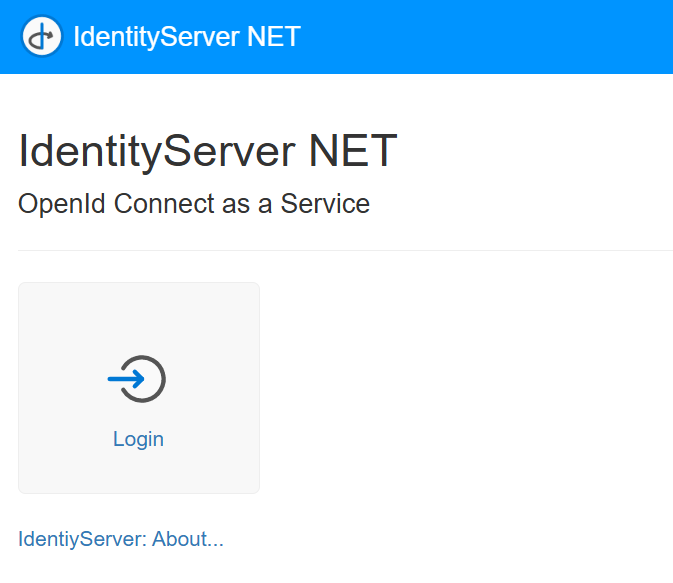
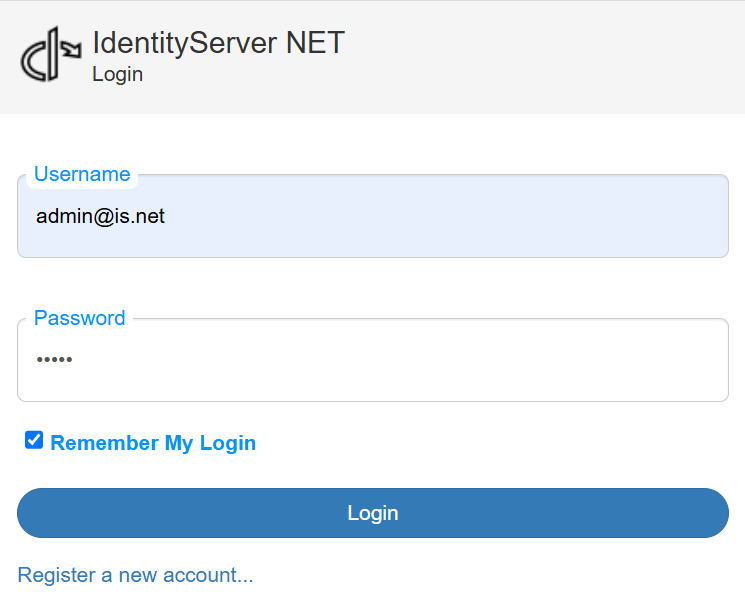
Clicking on Login allows you to log in as the admin user with the password displayed in the console output:
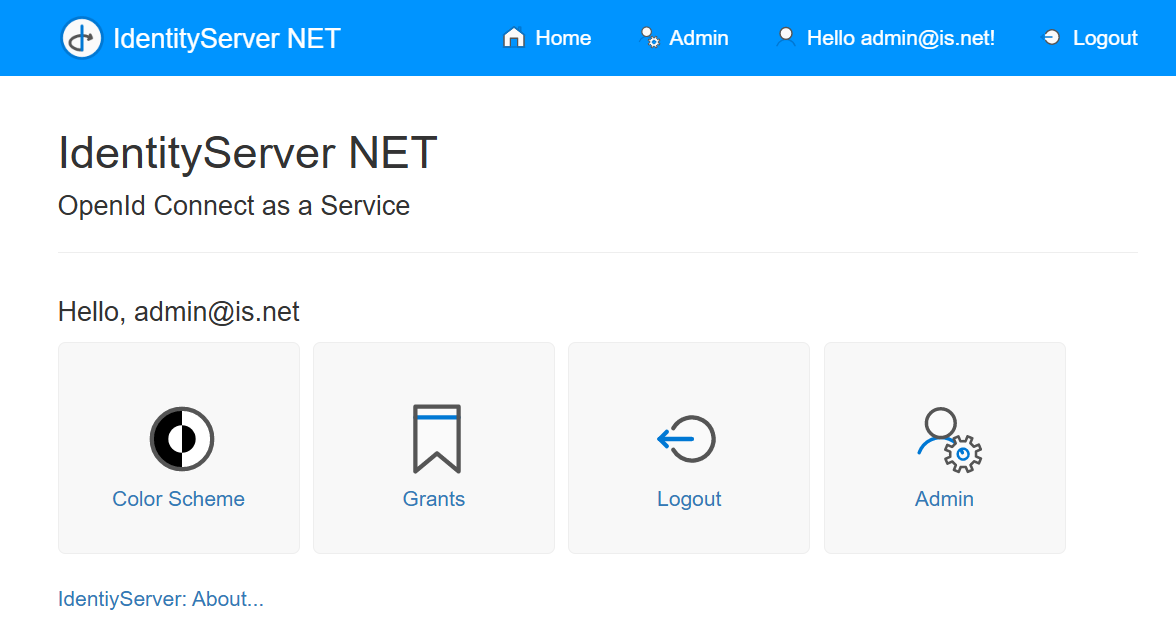
After a successful login, the display will look something like this:
Changing the Administrator Password
The automatically generated administrator password should be changed in production environments. Click on Manage my account to do this.
Here, various account settings can be made. To change the password, click on Password. The current password must be re-entered (Current password).
The new password must be entered twice (New password, Confirm new password).
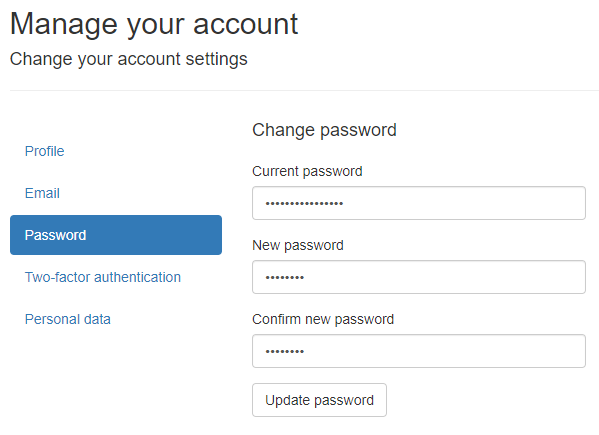
Clicking Update password sets the new password for future logins.
Two-Factor Authentication
For better account security, two-factor authentication via an Authenticator App is recommended, especially for the administrator.
To set this up, click on Two-factor authentication and then Setup authenticator app:
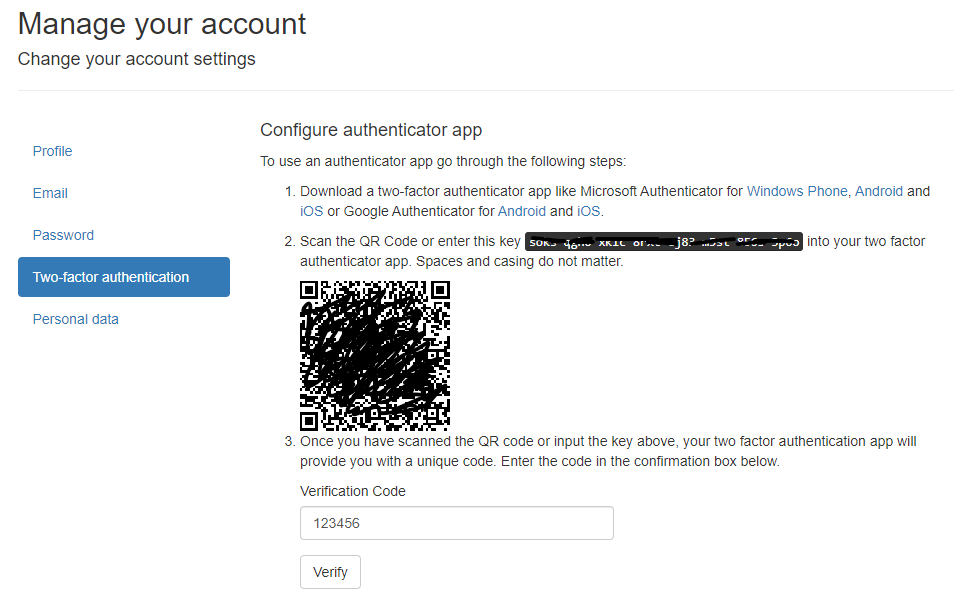
In an Authenticator App, scan the QR code displayed here. Enter the generated code in the Verification Code field and confirm with Verify.
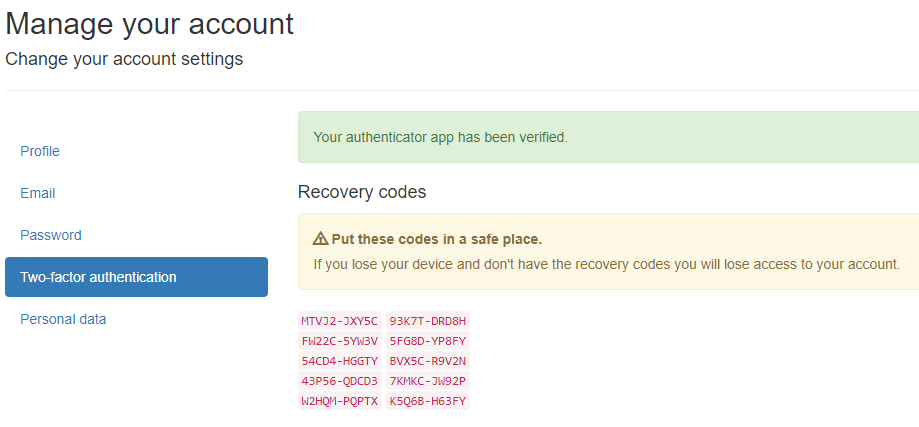
If the Code is accepted, a display with Recovery codes appears. These can be used as an alternative to the Authenticator App. Each
Recovery Code can only be used once to log in:
When logging out (Logout) of IdentityServerNET and logging back in, you will now need to enter an Authenticator code in addition to the new password:
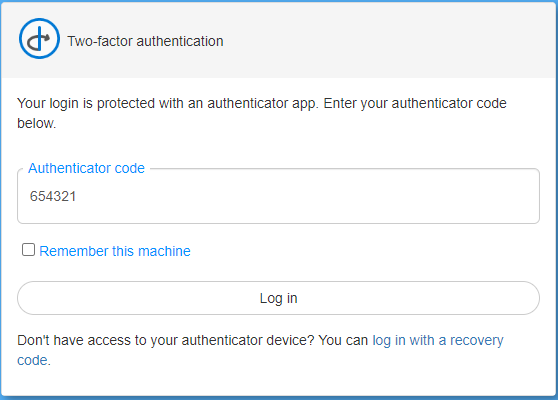
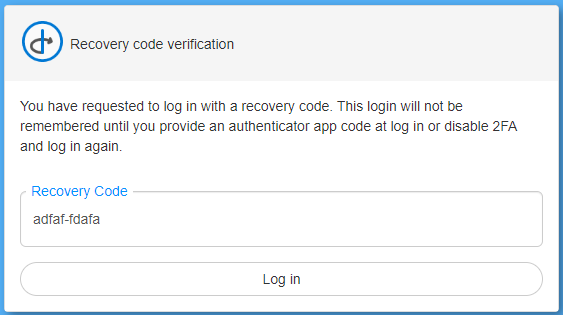
If the Authenticator App is unavailable, you can still log in with one of the Recovery Codes by clicking the log in with recovery code link: