Label Renderer
To label the features of a layer, the approach is similar to that used in Rendering. In the
Settings dialog for the layer, on the left, you will find the section Label Renderer. Here,
the checkbox Label features for this layer must first be activated:
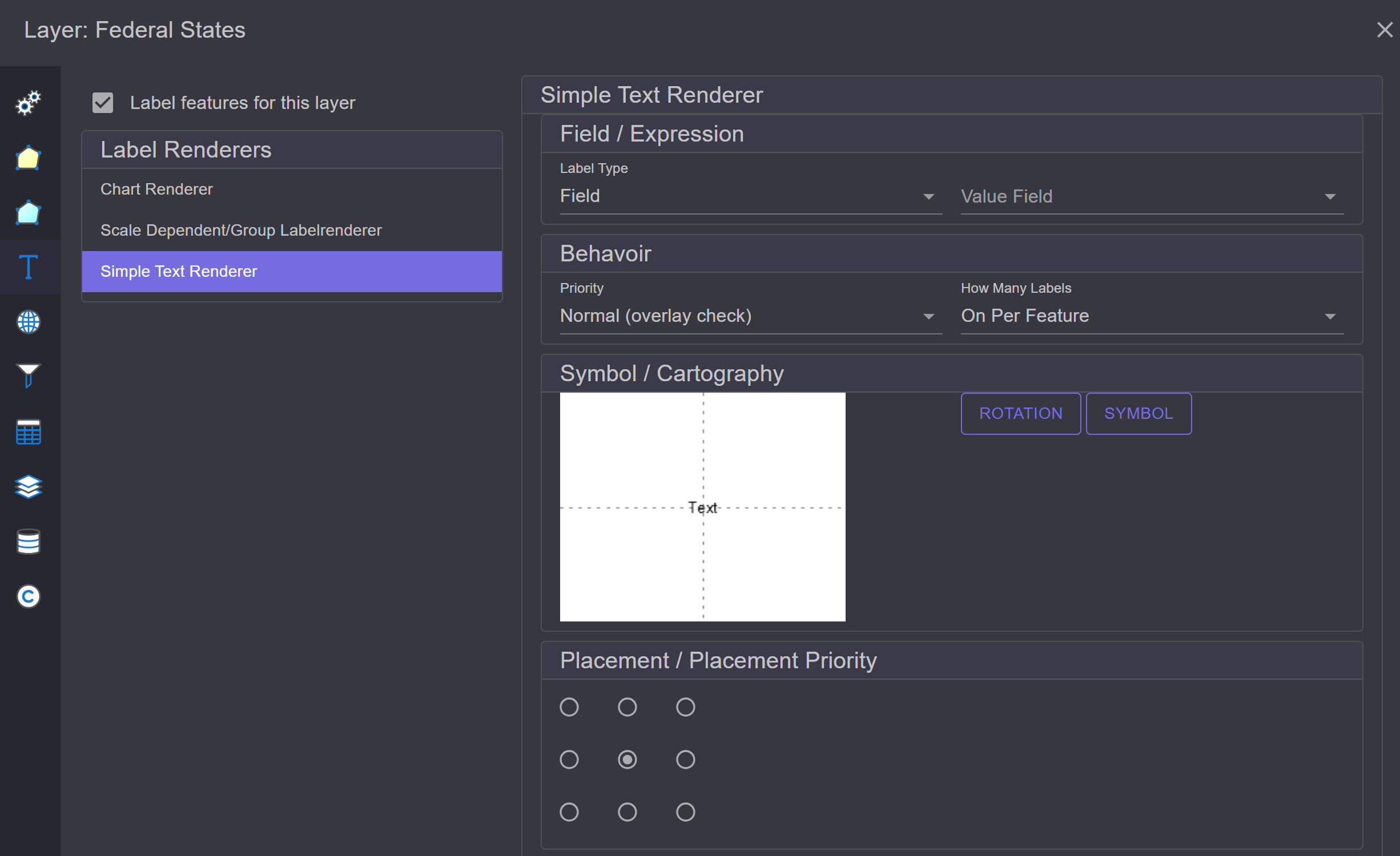
Different Renderers are offered here as well.
Simple Text Renderer
With this renderer, features can be labeled based on attribute values. This represents the most common use case.
The properties of the Renderer are divided into the following categories:
Field / Expression: Labeling can be done based on a field or an expression. For the
Fieldtype, simply select the field you want to label by:
With
Expression, an expression can be defined. When you click onEdit Expression, the Expression Editor opens. Here, an expression can be specified that consists of free text and placeholders (field names in square brackets) for the fields: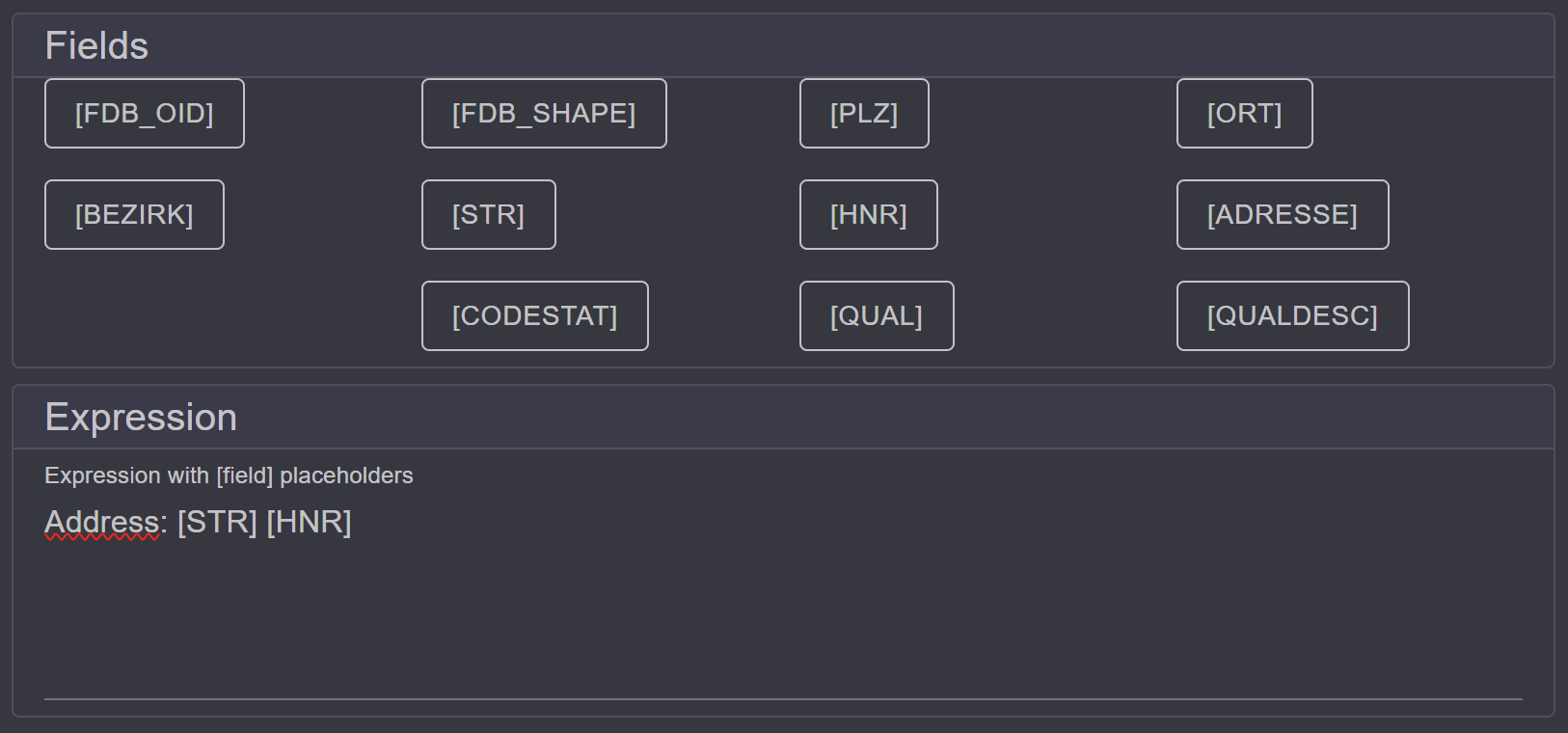
Field names are listed at the top. By double-clicking on a field, it is added as a placeholder in the expression.
Using expressions, field values can also be formatted. Formatting is possible for number and date fields. The syntax for a placeholder with formatting is as follows:
[FieldName:Format], e.g.[FieldName:0.00]for a number with two decimal places.Examples:
Standard formats for numbers:
Purpose
Format
Placeholder Example
Result with Value = 12345.678
Fixed decimal places
F2
[AMOUNT:F2]
12,345.68
Currency
C
[PRICE:C]
€12,345.68
Thousands separator, standard
N0
[QUANTITY:N0]
12,346
Percent
P1
[SHARE:P1]
(Value = 0.256) 25.6%
Exponential
E3
[VALUE:E3]
1.235E+004
Hexadecimal (Integer)
X8
[ID:X8]
(Value = 48879) 0000BEEF
Custom number formats:
Purpose
Format String
Example
Result
Two decimals, dot as separator
0.00
[VALUE:0.00] (12.3456)
12.35
Up to two decimals
#.##
[VALUE:#.##] (12.3)
12.3
Fixed width, leading zeros
00000
[NO:00000] (42)
00042
Thousands separator, two decimals
#,##0.00
[TOTAL:#,##0.00]
12,345.68
Standard formats for date/time:
Purpose
Format
Placeholder Example
Result with Value = 2025-04-24 14:30
Short date
d
[DATE:d]
04/24/2025
Long date
D
[DATE:D]
Thursday, April 24, 2025
Date + short time
g
[DATE:g]
04/24/2025 14:30
ISO-8601
o
[DATE:o]
2025-04-24T14:30:00.0000000+02:00
Geometry placeholders: [$feature.length] / [$feature.area]:
In addition to field names, an expression can also use the special placeholders
[$feature.length](length) and[$feature.area](area). Formatting works here as well, just like with number fields, e.g.[$feature.length:F2]for the length rounded to two decimal places.Note
[$feature.length]/[$feature.area]differ from a field like[SHAPE_LENGTH]: such a field comes from the database (e.g. an SDE) and holds a value stored there, which may not have been updated in a while.[$feature.length]and[$feature.area], on the other hand, are always computed live from the current geometry.This also means: with projected coordinate systems that are not length- or area-preserving (e.g. WebMercator or WGS84), the computed value does not correspond to the geodetic length or area! For accurate measurements, the geometry should be in a length-/area-preserving coordinate system suitable for the area in question.
SimpleScript expressions:
In addition to simple placeholder expressions, the Expression Editor also supports so-called
SimpleScriptexpressions. They allow conditional text blocks and text replacements that go well beyond plain placeholder substitution.Basic structure:
@@start
<line 1>
<line 2>
...
@@end
[@@replace(Search,Replacement)]
[@@replace(Search,Replacement)]
A value is only interpreted as SimpleScript if it literally starts with
@@startfollowed by a line break. Otherwise the text is left unchanged — useful in case a field value happens to start with the text “@@start”.Between
@@startand@@end, each line is either a control line (@@if(...),@@endif) or a content line (plain text, usually with[Field]or[Field:Format]placeholders). The included content lines are joined back together with a line break — but only between lines that are actually included: if, for example, the first line is dropped due to a false condition, no leading blank line is produced. If@@endis missing entirely, the whole original text is left unchanged (no error, simply no interpretation).Conditional blocks: @@if(…) / @@endif
A content line only appears if every
@@if(...)condition enclosing it is true — nesting acts as an AND combination, to any depth. There are four argument forms (comma-separated inside the parentheses):Form
Example
Meaning
1 argument
@@if([FIELD])true if the value is not empty/not just whitespace
2 arguments
@@if([FIELD],Value)true if it equals “Value” exactly (case-sensitive)
2 arguments, empty
@@if([FIELD],)trick for “field is empty”
3 arguments
@@if([FIELD],op,Value)op∈eq/not/lt/le/gt/gevariable
@@if([FIELD],in,V1,V2,V3,...)true if the value matches one of the listed values
eq/notare equality/inequality (case-sensitive text comparison).lt/le/gt/geare numeric comparisons. Both sides are parsed as a number (first with a dot as the decimal separator, then with the current culture, e.g. a German comma “123,4”); if either side is not a number, the condition is false. Unknown operators always evaluate to false.incombines several equivalent alternatives into a single condition, instead of requiring several near-identical@@ifblocks.
Note
Arguments are simply split on commas. A field value that itself contains a comma (e.g. a decimal comma like “125,4”) therefore shifts the argument count. For the operator forms (
eq/not/lt/le/gt/ge) there is an automatic rescue for this: if the first (field) value contains a decimal comma, it is reassembled correctly — provided the second-to-last element is a recognized operator keyword.Post-processing: @@replace(Search,Replacement)
Any number of
@@replace(...)lines can follow after@@end. They are applied one after another to the fully assembled result (not to individual lines), so chaining is possible — each replacement operates on the result of the previous one.Exact, case-sensitive substring replacement (no pattern/regex).
An empty replacement (
@@replace(Search,)) removes the found text.No match → the text is left unchanged.
An argument count other than 2 → the line is ignored.
Examples:
Labeling by type, with the prefix
S:forSchieberandV:forVentil(nesting acting as an AND combination):@@start @@if([TYP],Schieber) S: [NAME] @@endif @@if([TYP],Ventil) @@if([TYP],not,Schieber) V: [NAME] @@endif @@endif @@if([TYP],not,Schieber) @@if([TYP],not,Ventil) [NAME] @@endif @@endif @@end
A “field is empty” condition (
@@if([FIELD],)) combined with post-processing via@@replace:@@start @@if([STPKT_NR],) [NORMBEZEICHNUNG] @@endif @@if([STPKT_NR]) Nr [STPKT_NR] [NORMBEZEICHNUNG] @@endif @@end @@replace(Hausanschluss,HA)
If
[STPKT_NR]is empty, only[NORMBEZEICHNUNG]is output; otherwiseNr <STPKT_NR> <NORMBEZEICHNUNG>. At the end, every occurrence of “Hausanschluss” is replaced with “HA”.Multiple
@@replacestatements to abbreviate long default values or hide them entirely (an empty replacement removes the search text):@@start [TYP] @@end @@replace(Hausanschluß,HA) @@replace(Hausanschluss,HA) @@replace(Sonstiger Endpunkt,) @@replace(Sonstiger Punkt,) @@replace(Sonstiges Punktobjekt,) @@replace(Reserve,Res.)
Other notes:
Line breaks in the script source (
\r\n,\r,\n) are all handled the same way, regardless of the server operating system.All comparisons except
lt/le/gt/geare exact, case-sensitive character comparisons (no case tolerance for the value itself — only the operator keywords such aseq/inare case-insensitive).
Behavior: Here, the priority of the label is specified:

When multiple layers are labeled, this is done in the drawing order of the layers. To highlight the labels of a layer, the priority can be specified here. The reason is also that labels are only drawn if there is space available on the map. Labels cannot overlap. Therefore, it is possible that a label is not drawn at all. Labels with higher priority have a better chance of being drawn. If the priority
Alwaysis given, it will always be drawn, regardless of overlaps. However, this can lead to illegible labels if too many texts overlap.How many labelsindicates how often a text may occur:One per feature: Each feature is labeled exactly once.One per part: If the feature is a multipart feature, each part of the feature is labeled.One per name: If there are multiple features labeled with the same text, only the first is labeled. This prevents duplicate texts (for this layer) on the map.
Symbol / Cartography: Here, the labeling symbol (font) can be set:
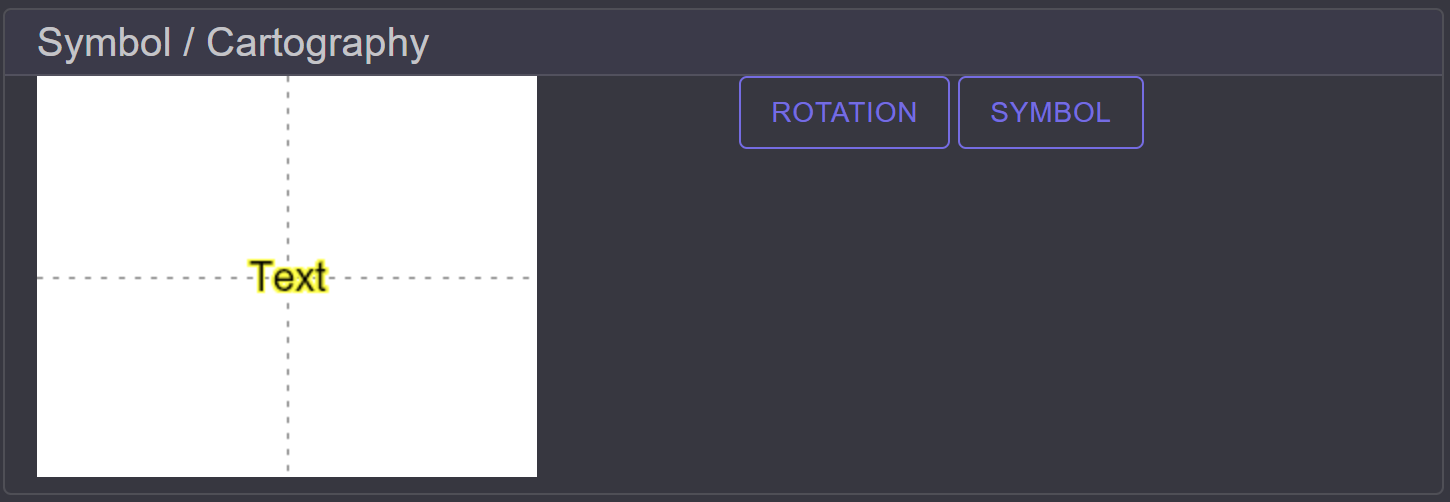
Similar to feature symbology, there is also a Symbol Composer for text symbols here:
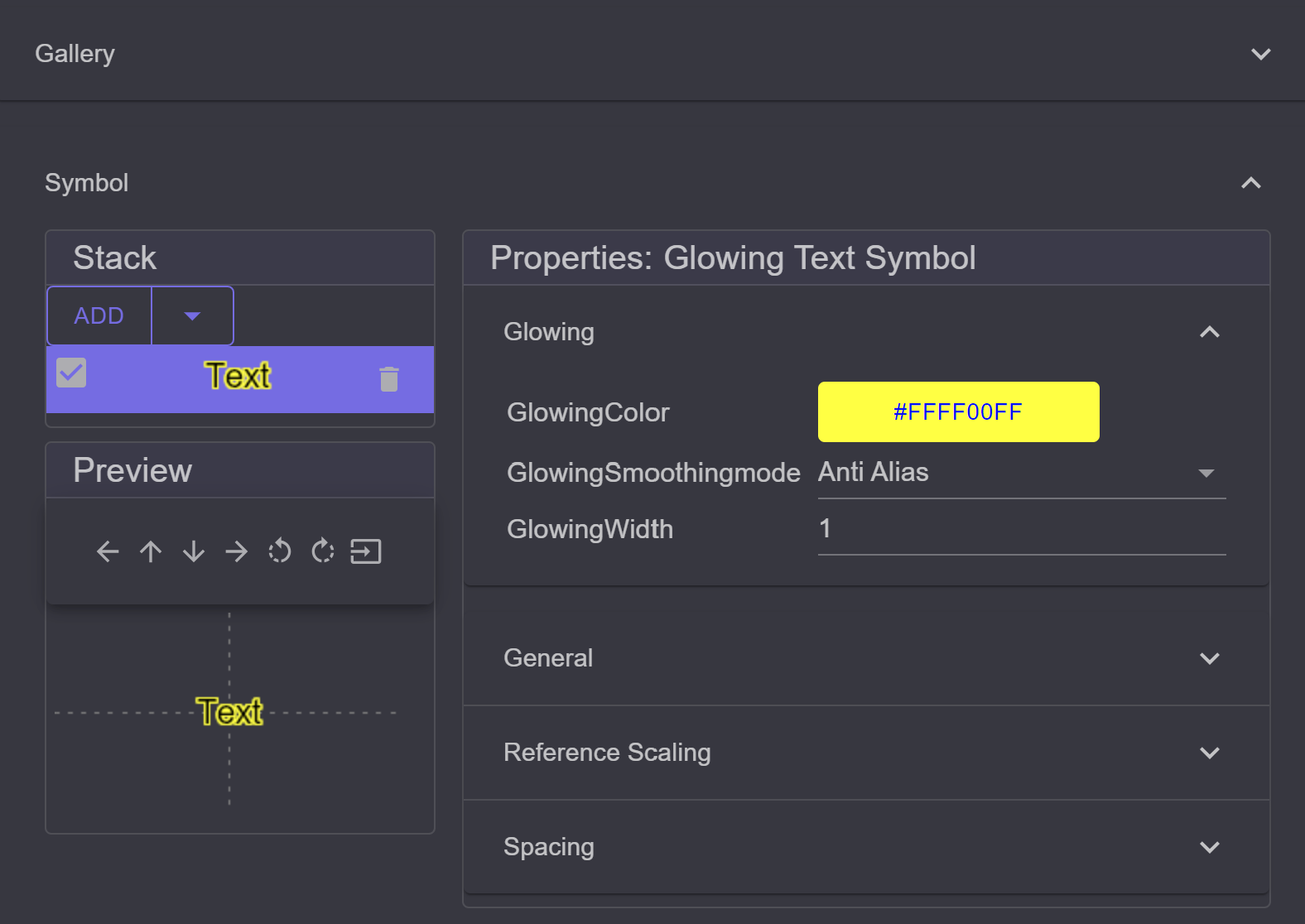
There is a
Gallerywith predefined symbols. Different types of symbols can be added via theStack:Simple Text: Just the text, no borderGlowing Text: Text with a colored outlineBlockout Text: Text within a colored rectangle
Note
Glowing and Blockout text improve the readability of text because they stand out better against the background. On backgrounds like aerial images, normal texts are often difficult to read.
Placement / Placement Priority: For point and line themes, it may make sense to determine where the label is placed. This can be controlled through
Placement: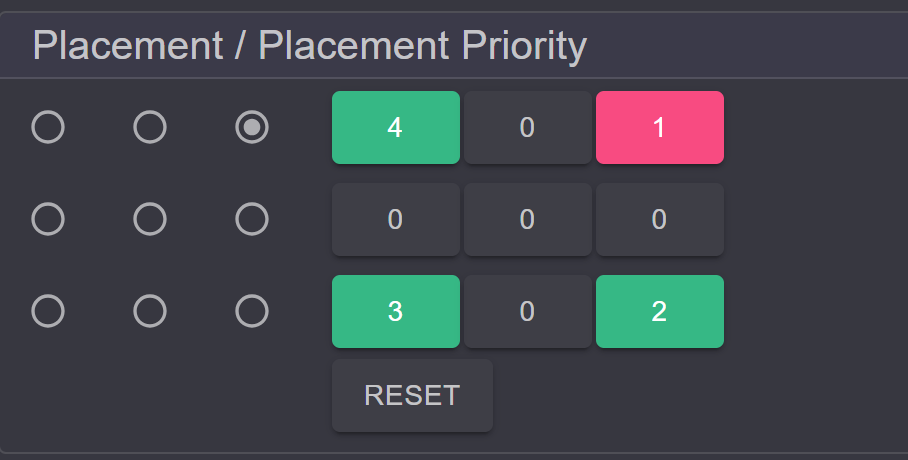
The center point would mean that the label is placed directly in the middle of the point or line. Through the priority, alternative positions can be assigned. If the label cannot be drawn due to space constraints, the subsequent specified positions are applied in order until a positive result is achieved.
Scale Dependent/Group Layer Renderer
Here, as previously with the Scale Dependent (Feature) Renderer, groups of Label Renderers can be defined. This allows layers to be labeled differently at different scales.
For example, countries could be labeled with a country abbreviation at small scales. As you zoom further into the map, they could be labeled with the full country name.
Chart Renderer
Here, instead of text, charts are inserted into the map:
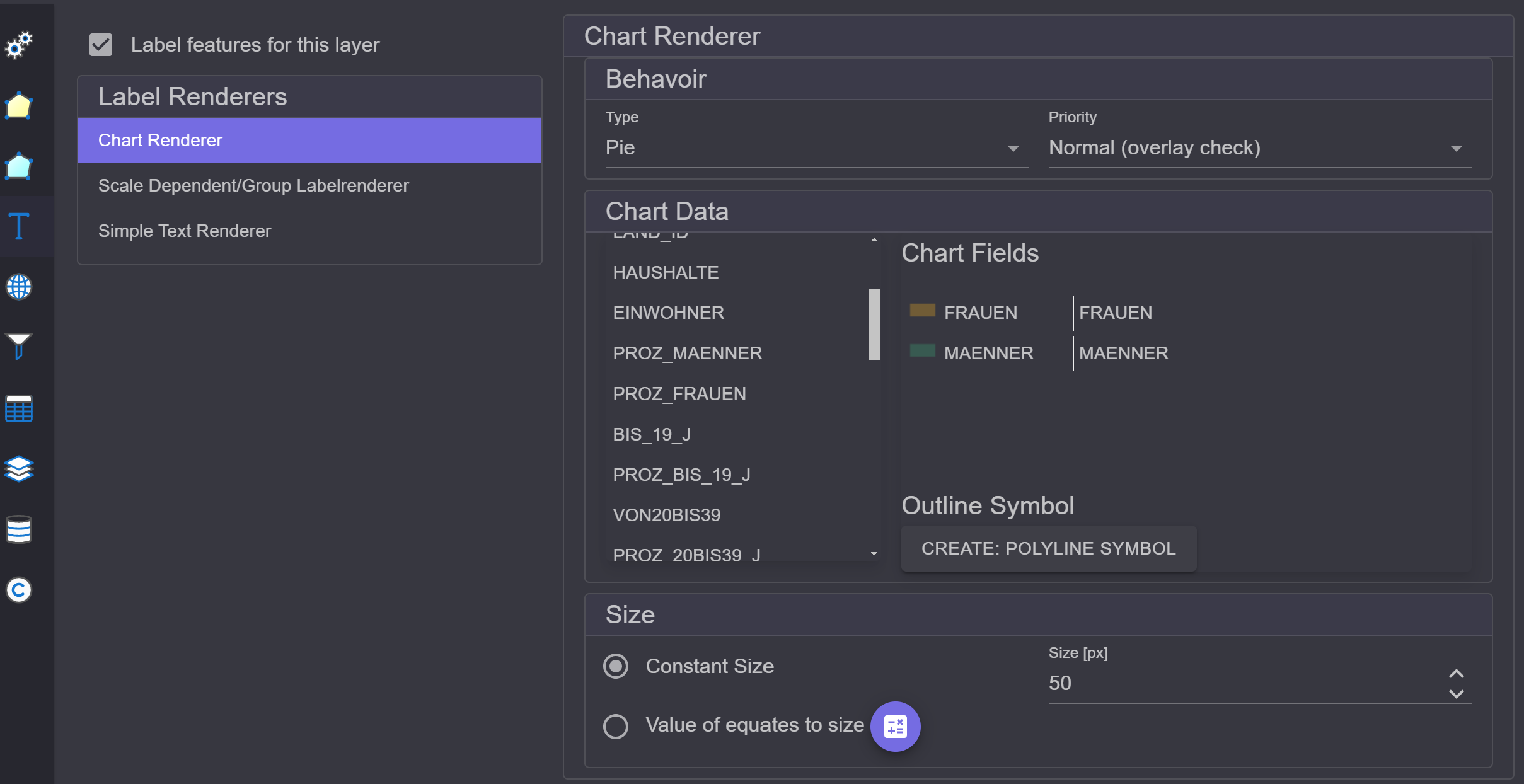
Behavior: Here, the type of chart can be specified (Pie, Bars, Stack).
Chart Data: Here, fields can be dragged into the
Chart Fieldsarea. The chart is created from the field values of these fields. (Note: the first field must be dragged onto the title (Chart Fields).) If you want to remove a field, it can simply be dragged back to the left into the list.Size: Charts can have a fixed size, or the size can depend on the total sum. For this, a sum value and a size in pixels are entered. The size of the charts is then calculated relative to these values.