Files and data
Files travel through a workflow as attachments of items (see Items and expressions). A webhook upload, a mail attachment, an HTTP response or Read File gives you one; Send Email, Write File and HTTP Request take one. The nodes on this page turn attachments into items and back, and work with dates, hashes and archives. The sample Data Tools uses all of them (Recipes).
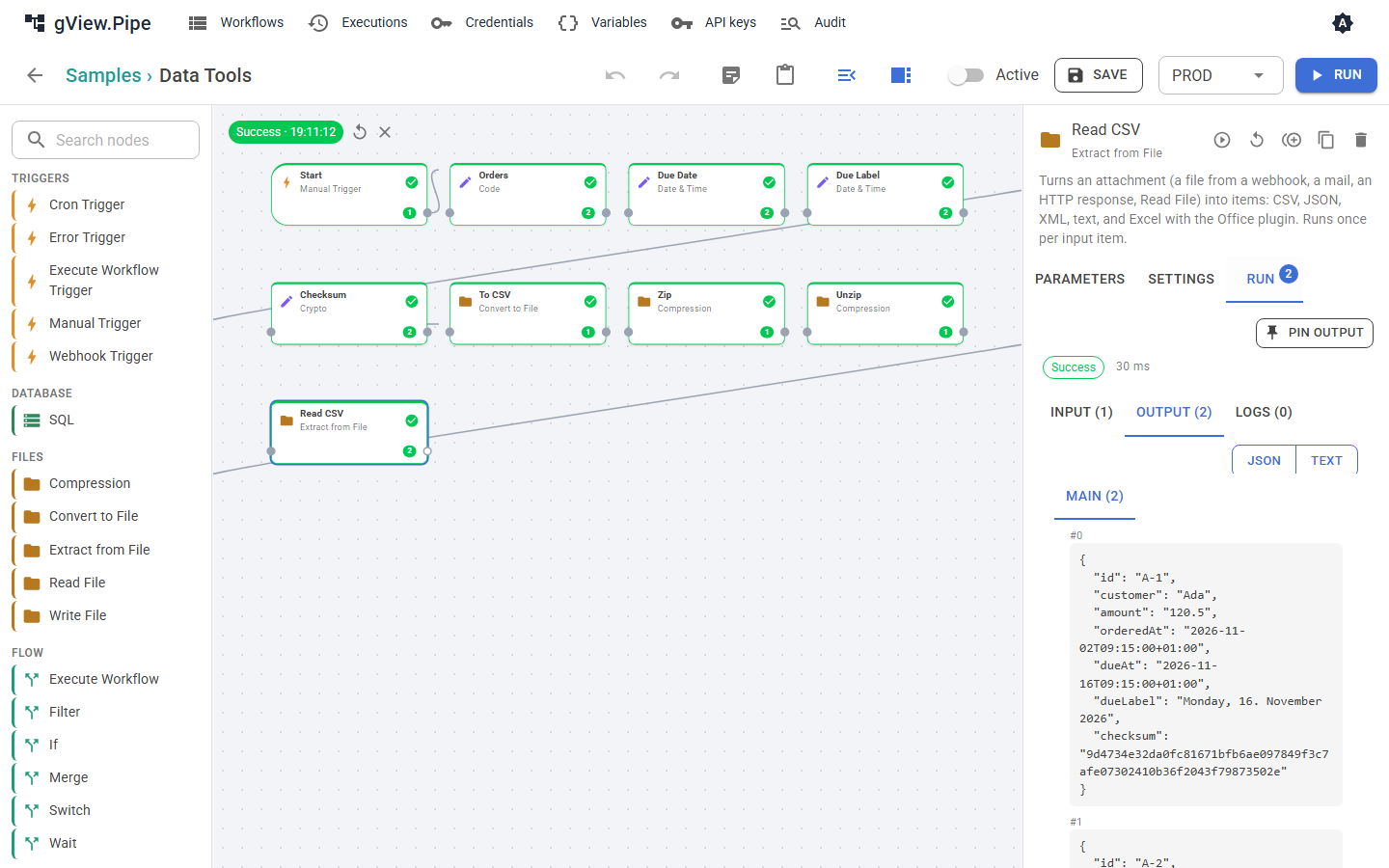
Extract from File
Reads the attachment data (setting Binary property) of each item in a format and makes items of it.
| Format | Becomes | Settings |
|---|---|---|
| CSV | one item per row; values are text | Header row, Delimiter (empty: detected from the first row), Encoding |
| Excel | one item per row; numbers stay numbers, dates become ISO text | Header row, Sheet (empty: the first). Needs the Office plugin. |
| JSON | an object is one item, an array one item per element | Encoding |
| XML | the whole document as one item, or one item per Item element | Item element, Always array, Encoding |
| Text | one item with the content in text |
Encoding |
Output Field keeps the input item and puts all rows into one field (rows) instead. Use it when the item carries more than the file, for example the sender of a mail.
Text is read as UTF-8 unless the file starts with a byte order mark or Encoding says otherwise, for example windows-1252 for CSV files saved by an older Excel.
XML as items
XML elements become JSON like this:
<order id="7" xmlns:x="urn:x"><line>Pen</line><line>Ink</line><x:note>fast</x:note></order>
{ "@id": "7", "@xmlns:x": "urn:x", "line": ["Pen", "Ink"], "x:note": "fast" }
Attributes start with @, text next to attributes or elements is in #text, repeated elements become arrays. An element that occurs once is a single value: list it in Always array (e.g. line) when your expressions expect an array.
Convert to File
Writes items into an attachment (data, file name in File name, with expressions).
- CSV and Excel always make one file of all items. The columns are all fields of the items in the order they appear; nested objects are written as JSON. Excel can put the items on one sheet per value of a field (Sheet per field, e.g.
region). - JSON writes an array of all items, or with Files = Each item each item as an object.
- XML writes all items as Item element below Root element (
<items><item>…</item></items>), or one document per item. An item read by Extract from File ({ "order": { … } }) is written back with the same root. - Text writes the field Text field (
text) of the items, one per line.
Date & Time
Works on a date and writes the result into Target field.
| Operation | Result |
|---|---|
| Now | the current time, in Time zone if set |
| Format | the date as text in Pattern (e.g. dd.MM.yyyy HH:mm), in Culture (e.g. de-DE for German month names) and Time zone |
| Parse | text in Pattern as ISO date; text without an offset is in Time zone |
| Add, Subtract | Amount of Unit; months and years only in whole numbers |
| Difference | from Date to Until (empty: now) in Unit; months and years are counted as whole calendar units |
| Convert time zone | the same moment in Time zone |
| Start of | the start of the day, week (Monday), month, … in Time zone |
Dates are read as ISO 8601 (2026-11-02T08:30:00+01:00), common text forms, or Unix seconds or milliseconds. Results are ISO 8601 with offset, so the next node reads them without a pattern. Time zones are IANA ids like Europe/Vienna or Windows ids. Patterns follow .NET: yyyy year, MM month, dd day, HH hour, mm minute, dddd weekday name, MMMM month name.
Crypto
| Operation | Result |
|---|---|
| Hash | SHA-256, SHA-512, SHA-1 or MD5 of Value or of an attachment, as hex or Base64 |
| HMAC | a signature of Value or an attachment with Secret, e.g. to check a webhook signature |
| UUID | a new random id |
| Base64 encode / decode | Value or an attachment as Base64, or Base64 back to text |
Take the HMAC secret from a secret variable ({{ $vars.WEBHOOK_SECRET }}, see Variables and environments), so it isn't stored in the workflow. MD5 and SHA-1 are fine for checksums, not for security.
Compression
| Operation | Result |
|---|---|
| Zip | the attachments of each item, or of all items (Zip = All items), in one ZIP archive (Archive name) |
| Unzip | one item per file of the archive, with the file in data and fileName, path, size; or all files as attachments of the input item |
| GZip / GUnzip | compresses or decompresses one attachment |
Unpacking stops with an error when the content gets larger than Max size (500 MB), so a small archive can't fill the server. Archives are never unpacked to disk: paths in the archive are only text in the items.