Executions
An execution is one run of a workflow, started by the editor, a trigger or another workflow. gView.Pipe records every execution with what each node received, produced and logged.
Running now
The start page lists every run in progress, whatever started it (the editor, Cron, a webhook or a sub-workflow). Each entry shows the workflow, its current node and the latest output line. The top bar shows n running.
Click a run to watch it in the editor, live. In the editor you can also stop it. Runs started by a webhook continue even when the caller disconnects, so stopping is the way to end one early.
Note
The list shows runs of this app instance. A finished run stays visible for a minute.
History
The workflow panel of the editor (select no node) lists the executions of the workflow, newest first, with status, start time, environment, how it was started (Manual, Trigger for Cron and Webhook, Sub-workflow, Error workflow, Replay, API with the name of the API key) and the duration. The field above the list filters by environment. The last 50 are kept, unless the workflow panel (Executions kept, Days kept) or the configuration says otherwise.
Click an execution to open it on the canvas: every node shows its state and counts, and you can open each node's Run tab to see the input, output and logs of that run. A note appears when the workflow was changed since the run, because some nodes may no longer exist.
| Status | Meaning |
|---|---|
| Success | The run finished. Individual nodes may have failed if they use Continue or Error output. |
| Error | A node failed with Stop the execution. The failed node is marked red. |
| Canceled | Someone stopped the run. |
| Running | Still in progress. |
Click the x next to the result chip above the canvas to clear the display and go back to the plain workflow.
All executions
Executions in the navigation lists the executions of all workflows, newest first: workflow, status, how it was started, environment, start, duration and the failed node. Filter by workflow or group, status, how it was started and time range (the last 7 days at first); Load more fetches older ones. Click a row to open the execution in the editor.
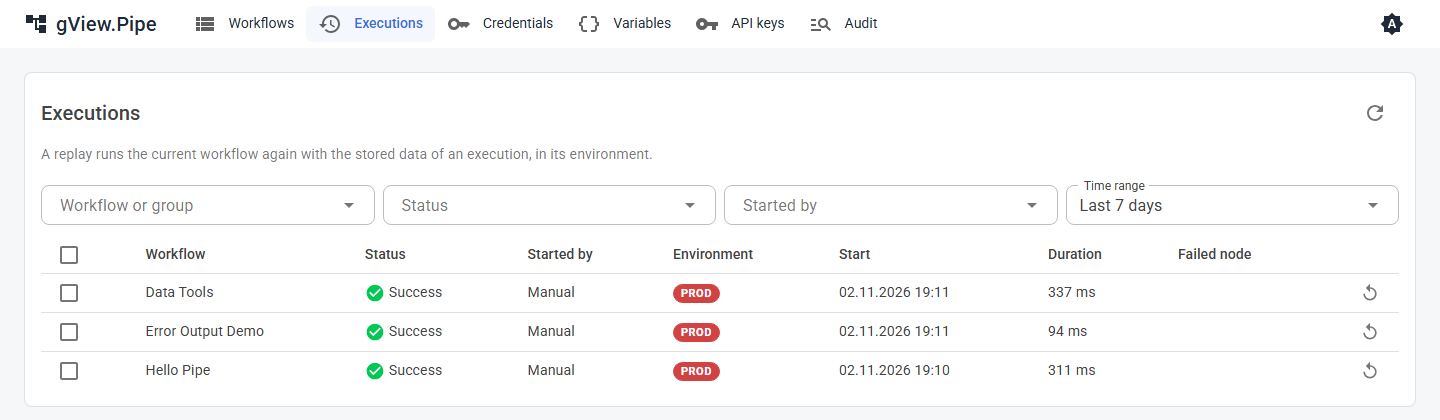
Replay
A replay runs a stored execution again, for example after you fixed the cause of a failure:
- It runs the saved, current workflow, not the version of the original run.
- It uses the stored data of the original run and runs in its environment.
- It behaves like a triggered run: pinned data is ignored, and the error workflow starts when it fails.
- It is listed as started by Replay and marked with the replay icon.
Where you start it:
| Where | What runs again |
|---|---|
| Replay button of a row, or several selected rows on the Executions page | The whole workflow, with the trigger output of the original run. Several replays run one after the other, oldest first. |
| Replay from failed node on the Executions page | Failed executions from their failed node, the others from the start. |
| Replay icon next to the result chip in the editor | The whole workflow; the red icon next to it replays from the failed node. |
| Replay from here in the toolbar of a selected node, while a run is shown | This node and everything after it. All other nodes take their outputs from the shown run. |
A replay waits until the workflow has a free run slot (Max concurrent runs) instead of being skipped. In the editor, save your changes first: the replay runs the saved workflow.
Warning
Executions stored without item data (Save item data of executions switched off) can't be replayed. Files of a run (binary data) are not kept after it ends: a node that reads such a file in a replay fails.
Sensitive data
Items of an execution are stored in the history, so they stay readable for everyone who can use the editor. Switch off Save item data of executions in the workflow panel if items contain sensitive data: then only statuses, counts and logs are stored. Secrets from webhook headers (Authorization, Cookie) never reach the items.
Executions and restarts
Running executions live in the memory of the app. When the app restarts, they end. A Wait node that is waiting loses its run. Finished executions are kept in files and survive a restart.